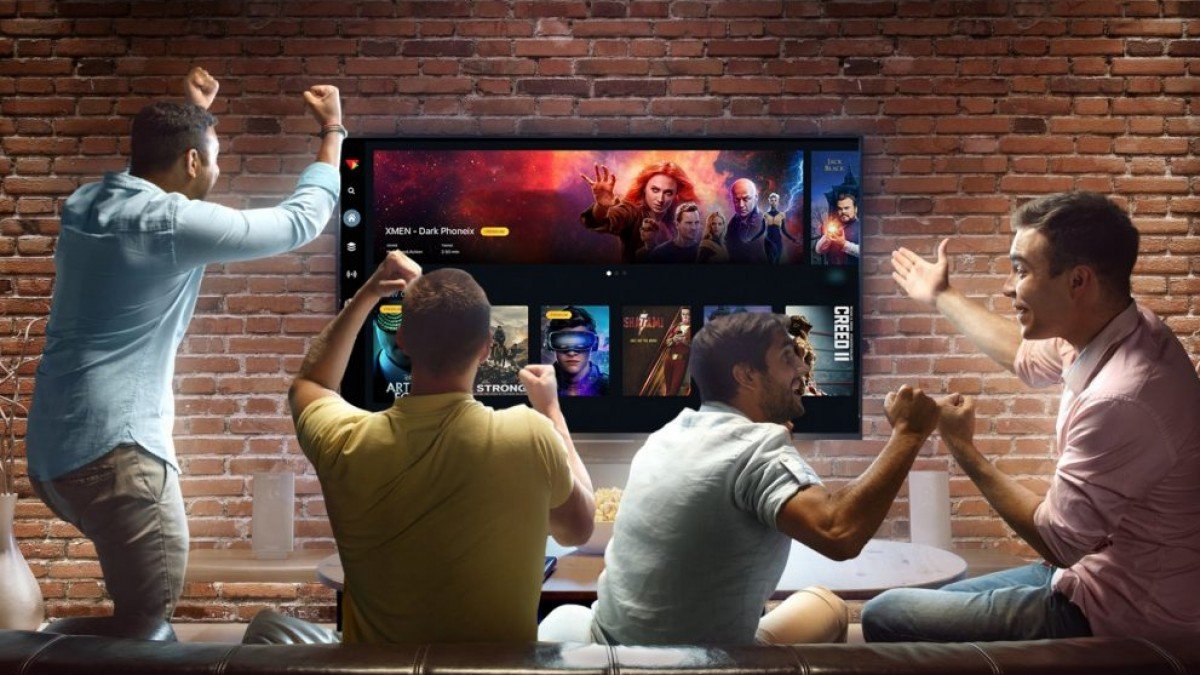
Setting up IPTV on a Smart TV is easier than many people expect. With the right application, a stable internet connection, and valid subscription details, you can start streaming within minutes.
For viewers looking for IPTV South Africa, Smart TVs provide one of the most convenient ways to watch live television, movies, series, sports, and international content without needing an additional streaming box.
This complete guide explains how IPTV works on Smart TVs, what you need before starting, how to install an IPTV player, and how to solve common problems.
What Is IPTV?
IPTV stands for Internet Protocol Television. It delivers television content through an internet connection instead of traditional satellite, cable, or terrestrial broadcasting.
With IPTV, compatible devices can access live channels and video-on-demand content through a dedicated IPTV application.
The experience depends on several factors. These include your IPTV provider, internet connection, Smart TV, application, and subscription plan.
Therefore, choosing a reliable service is just as important as completing the installation correctly.
What You Need Before Setting Up IPTV
Before installing IPTV on your Smart TV, prepare four essential things.
1. A Compatible Smart TV
Many modern Smart TVs support IPTV applications.
Popular platforms include:
- Samsung Smart TV
- LG Smart TV
- Hisense Smart TV
- TCL Smart TV
- Android TV
- Google TV
However, application availability can vary between models and regions.
2. A Stable Internet Connection
IPTV relies entirely on your internet connection.
For a smooth experience, IPTVPass recommends around 5 Mbps for SD, 10 Mbps for HD, 15–20 Mbps for Full HD, and 25 Mbps or more for 4K per stream.
A faster connection is especially useful when several people use the network simultaneously.
For the best results, connect your Smart TV using an Ethernet cable when possible. If you use Wi-Fi, a strong 5 GHz connection is generally preferable to 2.4 GHz.
3. An IPTV Subscription
You need an active IPTV subscription with valid access credentials.
Depending on the provider, you may receive:
- Username
- Password
- Server URL
- M3U playlist
- Xtream Codes information
Keep these details available because you will need them during setup.
4. An IPTV Player
Your Smart TV normally needs an IPTV player to display the content.
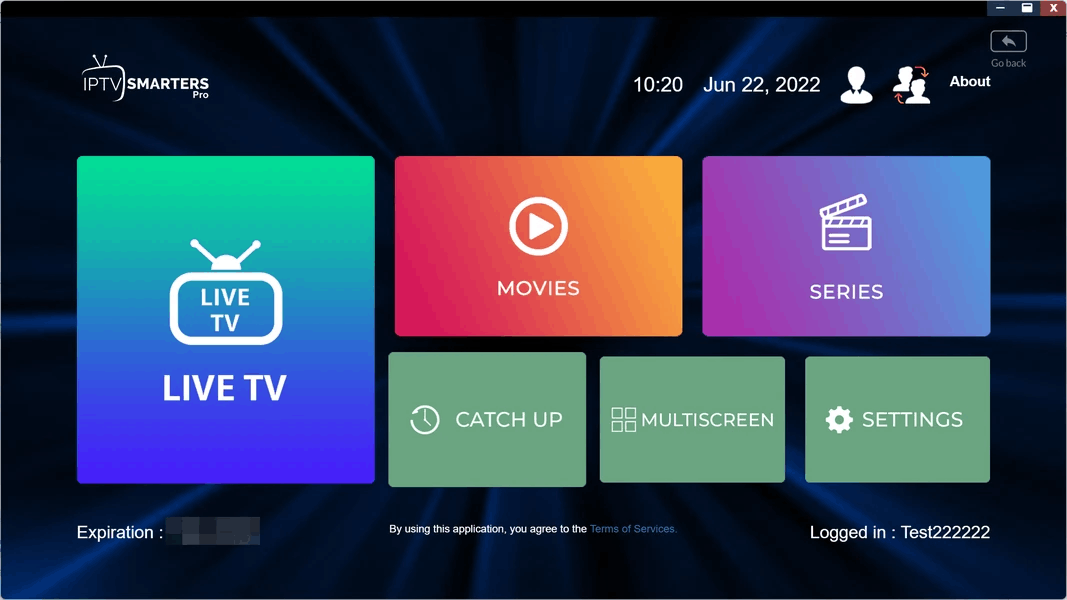
Common options include IPTV Smarters Pro, IBO Player, and other compatible applications.
How to Set Up IPTV on a Samsung Smart TV
Samsung Smart TVs use the Tizen operating system. The exact menus can differ slightly between models.
Step 1: Connect Your TV to the Internet
Open your Samsung TV’s network settings.
Connect it to your home Wi-Fi network or Ethernet connection.
Once connected, test an ordinary streaming application to confirm that your internet works correctly.
Step 2: Open the App Store
From the Samsung TV home screen, open the Apps section.
Use the search function to look for your preferred IPTV player.
IPTVPass’s current setup guide recommends IPTV Smarters Pro when it is available in the Samsung app store. IBO Player is another option when the preferred application is unavailable.
Step 3: Install the IPTV Application
Select the application and choose Install.
After installation finishes, open the application.
If a particular IPTV application does not appear, availability may depend on your television model or region. In that situation, check another compatible player.
Step 4: Choose the Login Method
Many IPTV applications provide several login options.
If your provider gives you Xtream Codes credentials, select Login with Xtream Codes API.
You will normally need to enter:
- Playlist or profile name
- Username
- Password
- Server URL
Enter each detail exactly as provided.
Step 5: Add Your IPTV Account
Type your credentials into the appropriate fields.
Be particularly careful with uppercase letters, numbers, and punctuation.
A single incorrect character can prevent the service from connecting.
Once everything is entered, select Add User, Login, or the equivalent option.
Step 6: Wait for the Content to Load
After successful authentication, the application should load your available content.
Depending on the service, you may see categories such as:
- Live TV
- Movies
- Series
- Sports
- Catch-up
- Electronic Programme Guide
The initial loading process may take a short time.
Once complete, select Live TV and choose a channel.
How to Set Up IPTV on an LG Smart TV
LG Smart TVs use webOS, although the exact interface depends on the model.
The overall process is similar to Samsung.
Step 1: Connect the LG TV
Connect your television to Wi-Fi or Ethernet.
A wired connection is recommended if your router and TV are close enough.
Step 2: Open the LG Content Store
From the home screen, open the LG Content Store.
Search for a compatible IPTV player.
Step 3: Install the Application
Select the application and install it.
IPTV Smarters Pro may be available on some compatible televisions. If it is unavailable, IPTVPass currently recommends IBO Player as an alternative for supported Samsung and LG sets.
Step 4: Enter Your Subscription Details
Open the IPTV application.
Choose the appropriate login method, such as Xtream Codes API.
Enter the username, password, and server URL supplied by your IPTV provider.
Step 5: Load Your Channels
After authentication, allow the application to download your channel list and other content.
You can then open the Live TV section and begin watching.
Using IBO Player on a Smart TV
IBO Player can be useful when your preferred IPTV application is unavailable on your television.
The setup works slightly differently.
First, install IBO Player from the Samsung or LG application store.
When you launch it for the first time, the application displays a Device ID and Device Key.
Keep these details available.
You then use the IBO service’s activation interface from a phone or computer and add your IPTV playlist using the credentials supplied by your provider.
After saving the playlist, return to the television and refresh IBO Player.
Your channels should then appear.
IPTVPass’s current guide notes that IBO Player may require a separate one-time activation fee paid to IBO rather than the IPTV provider.
How to Set Up IPTV on Android TV
Android TV and Google TV can offer a straightforward IPTV setup.
Open the Google Play Store and search for a compatible IPTV player.
Install the application, then select the appropriate login option.
If your provider supplies Xtream Codes credentials, enter:
- Profile name
- Username
- Password
- Server URL
After selecting Add User, allow the application to load the available channels and video-on-demand content.
Android TV devices can be particularly useful if your television does not have a suitable IPTV application built into its operating system.
How to Improve IPTV Streaming Quality
Installing IPTV correctly is only part of the process.
Your network configuration also affects streaming performance.
Use Ethernet When Possible
An Ethernet cable provides a direct connection between your TV and router.
This can reduce wireless interference and improve consistency.
Use 5 GHz Wi-Fi
If Ethernet is not practical, connect your television to a strong 5 GHz Wi-Fi network.
The 2.4 GHz band can become congested, particularly in apartments and busy residential areas.
Test Your Internet Speed
Run a speed test using the device where you watch IPTV.
Testing another device may give misleading results.
Your television could receive a weaker signal than your smartphone or computer.
Reduce Video Quality When Necessary
If 4K constantly buffers, try Full HD or HD.
Higher-quality streams require more bandwidth.
Reducing the resolution can sometimes produce a much smoother viewing experience.
Restart Your Router
A simple router restart can occasionally resolve temporary connection problems.
After restarting, wait until the internet connection is fully restored before testing IPTV again.
How to Fix IPTV Buffering on a Smart TV
Buffering can have several causes.
First, determine whether every channel buffers or only one particular channel.
If every channel buffers, investigate your internet connection, Wi-Fi signal, and home network.
If only one channel has problems, the issue may be specific to that stream.
You can also try:
- Restarting your Smart TV
- Restarting your router
- Switching from Wi-Fi to Ethernet
- Using 5 GHz Wi-Fi
- Closing unnecessary applications
- Reducing streaming quality
- Testing another IPTV channel
IPTVPass’s troubleshooting guidance similarly recommends testing the actual affected device, using Ethernet where possible, preferring 5 GHz Wi-Fi, and lowering stream quality when necessary.
What Are Xtream Codes?
Xtream Codes is a common method used by IPTV applications to connect a subscription to a media server.
Instead of manually adding a long playlist, many applications allow you to enter three main details:
- Username
- Password
- Server URL
Once authenticated, the application can retrieve the available live channels and video-on-demand content.
If your IPTV provider gives you Xtream Codes information, make sure you enter it exactly as provided.
What Is an M3U Playlist?
An M3U playlist is another common IPTV format.
It contains information that allows a compatible application to access a list of media streams.
Some IPTV players accept M3U URLs directly. Others are designed around Xtream Codes credentials.
Therefore, always check which format your provider supports before configuring the application.
How to Activate the EPG
EPG stands for Electronic Programme Guide.
It displays programme information and helps you see what is currently playing and what is scheduled next.
Some IPTV applications automatically load EPG information when you use Xtream Codes.
Other players may require you to activate or configure EPG separately.
For example, IPTVPass’s Smart TV guide recommends enabling automatic EPG updates where supported so the programme guide remains current.
Can You Watch IPTV on Multiple Smart TVs?
That depends on your subscription plan.
A standard IPTV subscription may allow one active stream at a time.
If you start streaming on another television while the first TV is still playing, you may receive a connection-limit error.
IPTVPass explains that one subscription streams to one device at a time unless a multi-device plan has been purchased.
Therefore, households with multiple viewers should choose a plan that supports their expected number of simultaneous connections.
Choosing IPTV South Africa for Your Smart TV
When searching for IPTV South Africa, do not focus exclusively on the number of advertised channels.
Instead, consider the complete service.
Look for:
- Smart TV compatibility
- Stable streaming
- HD and 4K options
- Useful channel selection
- Video-on-demand content
- Reliable customer support
- Simple installation
- Appropriate subscription options
- Clear terms and conditions
A provider should also explain how to configure the service on different devices.
IPTVPass currently provides setup instructions for Samsung, LG, Android, Fire TV, Apple devices, Windows, MAG, Formuler, and Roku.
Why Choose IPTVPass?
For viewers comparing IPTV South Africa services, IPTVPass provides a dedicated setup guide and support for multiple device types.
The service advertises more than 22,000 live channels and over 90,000 movies and series. It also advertises HD, Full HD, and 4K streaming options.
Its setup documentation is designed to help users install IPTV on different devices without complicated technical steps.
You can explore the available IPTV options at IPTVPass.co.za.
Final Thoughts
Setting up IPTV on a Smart TV does not have to be complicated.
Start by connecting your television to a stable internet connection. Next, install a compatible IPTV player and enter the credentials supplied by your provider.
For the best experience, use Ethernet whenever possible. Otherwise, choose a strong 5 GHz Wi-Fi connection and make sure your internet speed matches your chosen video quality.
If you are searching for IPTV South Africa, compare providers based on reliability, device compatibility, streaming quality, content, support, and overall value.
Once everything is configured correctly, your Smart TV can become a convenient hub for live television and on-demand entertainment.